
How To Import Bank Statements Into Xero From PDF
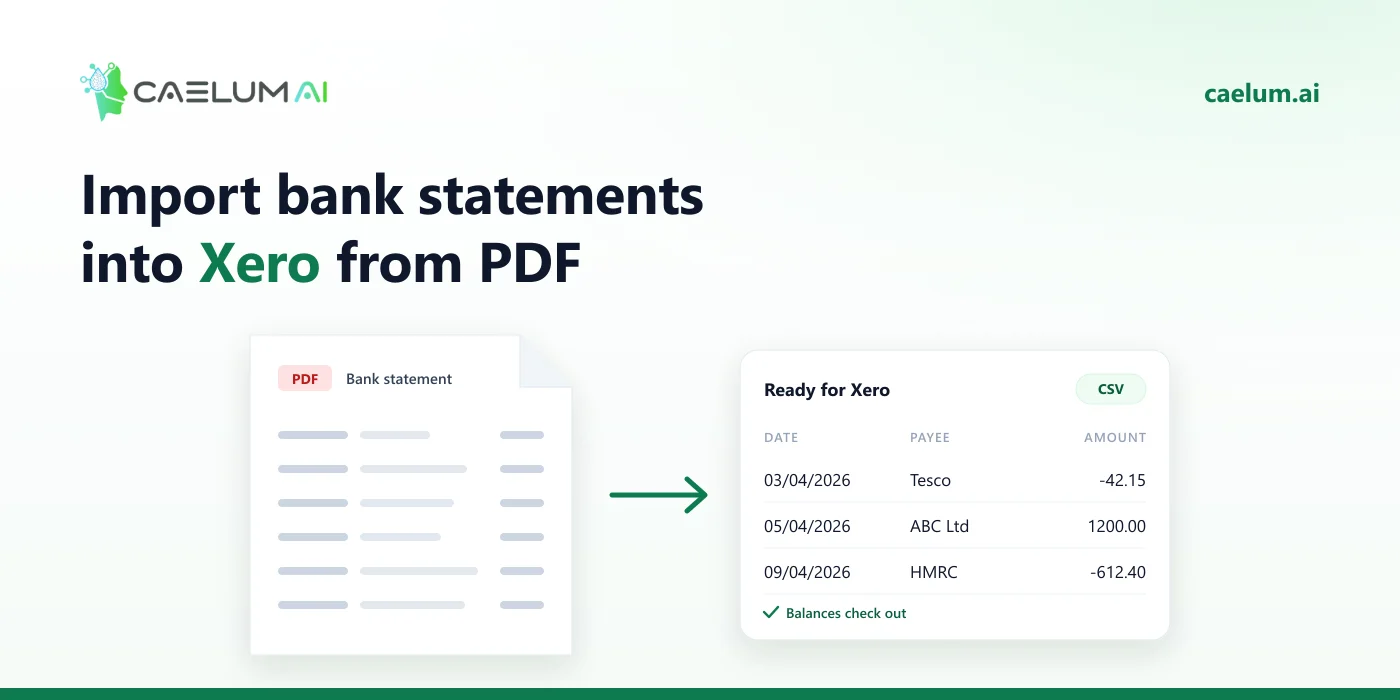
Xero cannot import a PDF bank statement: it imports statement lines from a CSV file (or OFX/QIF). To get a PDF statement into Xero, convert it to CSV with a date, a description and a single signed amount per transaction, then use Xero’s Import a statement option on the bank account. Check the closing balance in Xero matches the statement afterwards.
This is the usual route when a bank feed is missing, broken, or does not go back far enough — catch-up work, new clients, or closed accounts.
Step 1: Convert the PDF to CSV
Upload the statement PDF to Caelum (scans, photos and password-protected PDFs are fine) and download the transactions as CSV. Caelum checks every statement against its running balance first, so you know the data is complete before it reaches Xero.
If the PDF holds several months, check the statement periods Caelum found, and import them in order.
Step 2: Shape the CSV for Xero
Xero’s statement import needs, at minimum:
| Column | Notes |
|---|---|
| Date | Use the same format as your Xero region — DD/MM/YYYY in the UK. |
| Amount | One column: money in positive, money out negative. |
| Payee / Description | What you will reconcile against. |
| Reference (optional) | Cheque numbers, payment references. |
If your CSV has separate money in and money out columns, add an Amount column: = money in − money out. Remove opening/closing balance rows and any totals — they are not transactions.
Step 3: Import into Xero
- Open Accounting → Bank accounts and choose the account.
- From the account’s menu, choose Import a statement.
- Upload the CSV and map each column (Date, Amount, Payee, Description, Reference). Xero remembers the mapping for next time.
- Review the preview, then import.
Menu names can change; if these do not match, search Xero Central for “import a bank statement”.
Step 4: Check before you reconcile
- Closing balance: the statement balance shown in Xero should match the PDF’s closing balance.
- Overlaps: importing a period the bank feed already covers creates duplicates. Xero warns about some, not all — check the date ranges first.
- Signs: if every payment shows as a receipt, the amount column was reversed. Delete the imported statement and re-import.
Frequently asked questions
Can Xero read PDF statements directly? No. Xero’s statement import takes CSV, OFX or QIF files.
What about credit card statements? The same process works; remember that on a card, purchases are money out. See credit card statements to Excel.
Can I import several months at once? Yes, as one CSV — but only if the periods do not overlap anything already in Xero.